
Session management
Every sign-in creates a server-side session. Use this page to see who is signed in, end a session and understand when a sign-in expires.
View and end a session
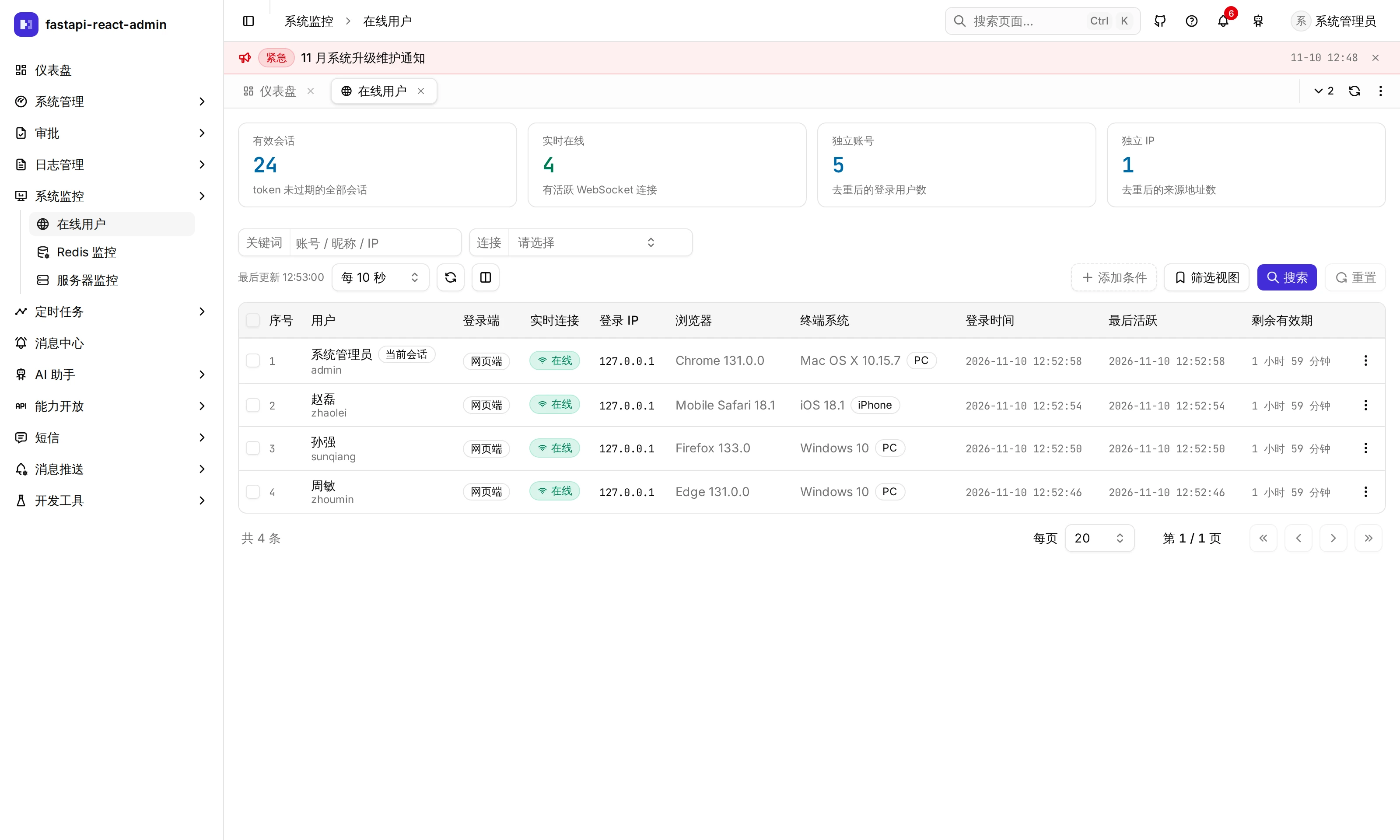
Section titled “View and end a session”Entry: Monitoring → Active sessions (/monitor/online). Only superusers can list sessions and force sign-out; granting the menu to an ordinary role does not grant these API operations.
- Find the session by user, client type, IP, browser and sign-in time.
- Check its last activity, live connection and time left to identify the device.
- Choose Force sign-out for the session you intend to end.
Expected result: an open page with a live connection immediately returns to sign-in with the reason. Without a live connection, the next API request receives a 401 carrying that reason. Signing out in one browser tab also signs out its other tabs.
Preview Active sessions
Set timeouts and device limits
Section titled “Set timeouts and device limits”Each sign-in creates a session on the server, and its ID stays the same until it ends. The client says which kind it is when signing in, and each kind has its own rules:
| Rule | Web | Desktop | Mobile |
|---|---|---|---|
| Idle timeout | 120 minutes | 120 minutes | 30 days |
| Maximum lifetime (from sign-in; activity does not extend it) | 7 days | 7 days | 90 days |
| Sessions per account on this client | Unlimited | Unlimited | 1 |
| When the limit is reached | Sign out the least recently active | Sign out the least recently active | Sign out the least recently active |
All of these are under Config → Sessions; the over-limit behaviour can also be “refuse the new sign-in”. For single-device sign-in, set the limit to 1. Changes apply to later sign-ins only; existing sessions keep the rules they started with.
What does a signed-out person see?
Section titled “What does a signed-out person see?”When a session ends the server records why; the next request from that person gets a 401 carrying the reason, and the page goes back to the sign-in screen with the message:
| Reason | Message on the sign-in page |
|---|---|
| Forced sign-out by an admin | You were signed out by an administrator, please sign in again |
| Pushed out by the session limit / signed in again in the same browser | Your account signed in on another device, so this device was signed out |
| Idle timeout | You were signed out after a period of inactivity, please sign in again |
| Maximum lifetime reached | Your session has expired, please sign in again |
| Password changed or reset | Your password was changed, please sign in again |
| Account disabled or deleted | Your account has been disabled, please contact the administrator |
| Refresh token reused | Your sign-in credentials were used more than once, so you were signed out; change your password if this wasn’t you |
How activity and token renewal work
Section titled “How activity and token renewal work”Activity reporting and refresh-token rotation
Idle means the person stopped using it, not that requests stopped. Active sessions polls every 10 seconds, monitoring pages and export progress also make background requests. Counting requests would keep a session alive forever while the person is away and the browser is open, exactly what an idle timeout is supposed to catch. So every request from the browser carries how many seconds have passed since the last keyboard, mouse or touch input, and the server works out the last activity from that; for someone who keeps scrolling or typing without triggering a request, the client sends a heartbeat every 5 minutes.
The access token lasts 30 minutes and is renewed with the refresh token, which is replaced each time it is used. Presenting the previous refresh token within 30 seconds (several tabs refreshing at once, a retry on a bad network) returns the same new pair; presenting it later is treated as possible theft and the whole session ends immediately.
Session operations use Lua scripts for a single Redis instance. Redis Cluster has not been tested.
Try it on the demo
Section titled “Try it on the demo”On the live demo (admin / 123456), sign in from two browsers (or a normal and a private window). Under Monitoring → Active sessions you will see both sessions with their client type, browser and last activity. Force your own other session to sign out and that window goes back to the sign-in page with the reason. Everyone shares admin on the demo, so don’t sign out other people’s sessions; the demo is also not guaranteed to have MFA_SECRET_KEY set, so try two-factor locally.
Related guides
Section titled “Related guides”- Security configuration: session setting keys and defaults.
- Sign-in and security: passwords and two-factor setup.