
Dashboard and workspace
After sign-in the first page is the dashboard: a set of cards (Waiting on me, My requests, Quick start, Shortcuts, Messages for me, Announcement, Needs your attention, Service status, Sign-ins over the last 14 days). Each person chooses which to show, in what order and how wide; the layout is stored on the server, so signing in on another computer brings back the same one, and cards someone has no permission for never appear. Around the dashboard the interface has a few shared tools: the ⌘K command palette, keyboard shortcuts, a product tour, appearance settings in Profile, column visibility and order on lists, a per-user time zone and language, and a refresh prompt when a new version is deployed. Tabs are covered separately in Multi-tab.
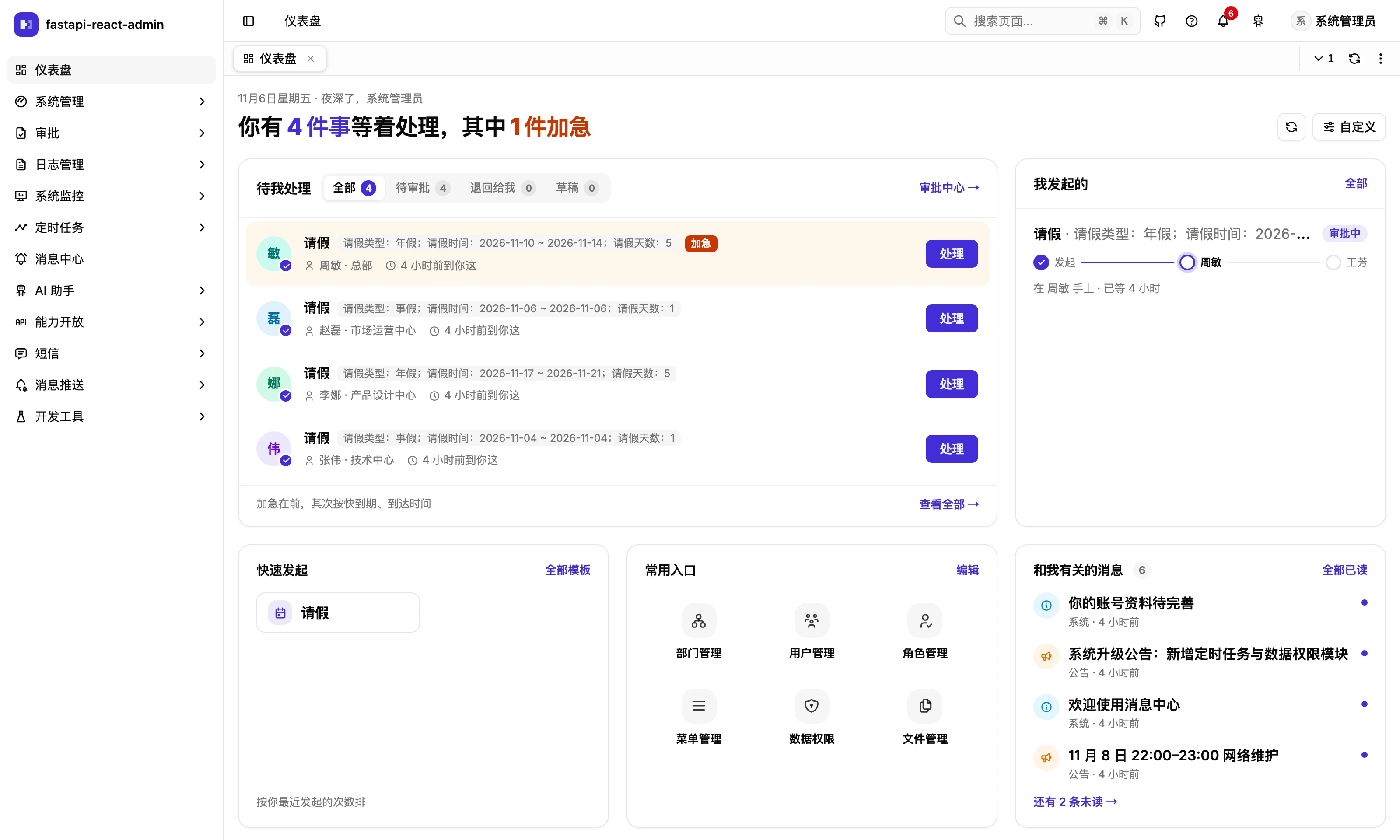
Where is it in the UI?
Section titled “Where is it in the UI?”| What | Where | Stored |
|---|---|---|
| Dashboard and the Custom button | Dashboard /dashboard, every signed-in user | Server, per user (all devices) |
| Command palette | ⌘K / Ctrl+K on any page | — |
| Keyboard shortcuts | Press ?, or Help in the top bar | — |
| Product tour | Open from Help → Product tour or the command palette; never starts on its own | Not stored |
| Appearance and layout preferences | Profile → Theme / Layout / Tabs | Browser |
| Display time zone | Profile → Profile | Server, per user |
| Language | User menu at top right → Language; also on the sign-in page | Browser |
| List Columns | At the right of each list’s header | URL |
Which cards are there, and who sees them?
Section titled “Which cards are there, and who sees them?”| Card | Content | Who sees it | Default |
|---|---|---|---|
| Waiting on me | Up to 6 items, tabs All / To approve / Returned to me / Draft | People with the approval center in their sidebar | 2/3 width, shown |
| My requests | Progress bars for the last 3 requests; Remind after a day without movement | same | 1/3, shown |
| Quick start | 4 workflows you can start | same | 1/3, shown |
| Shortcuts | Pages picked from your own sidebar, 6 by default, up to 12 | everyone | 1/3, shown |
| Messages for me | 4 unread messages, the same data as the bell | everyone | 1/3, shown |
| Announcement | 5 notices | everyone | full width, hidden by default |
| Needs your attention | Auto-disabled webhooks, failed jobs in the last 24 hours, an unusual rise in failed sign-ins today | Anyone with open:webhook:list, task:scheduler:edit or log:login:list | 1/2, shown |
| Service status | API / database / cache / scheduler / worker, plus online sessions per client | Superusers | 1/2, shown |
| Sign-ins, last 14 days | Daily bars of successful / failed sign-ins | log:login:list | full width, shown |
Cards without permission are not rendered, rather than rendered as an empty “no access” shell, and the backend endpoints behind them check the same conditions. The “System” group appears only for people who can see at least one of its cards.
How do I customise the dashboard?
Section titled “How do I customise the dashboard?”Click Custom at the top right to enter edit mode (the URL gains edit=true, which survives a reload):
- Show or hide each card
- Drag to reorder, or use the keyboard (space to pick up, arrow keys to move, space to drop); each group is ordered separately
- Four widths: 1/3, 1/2, 2/3, Full
- Choose which pages go in Shortcuts
- Restore defaults
The layout is stored per user on the server (table sys_user_preference, key dashboard.layout), the same in any browser on any computer. Compatibility rules keep upgrades from breaking it: unknown cards are ignored, new cards are appended at the end, and one bad field falls back for that field only; a layout that cannot be read at all shows a warning and the default layout. If loading the layout fails, an error is shown with the default layout and editing is disabled (otherwise saving would overwrite the real layout on the server); if saving fails, the error stays in the editor and the draft is kept.
Command palette and shortcuts
Section titled “Command palette and shortcuts”Press ⌘K (Ctrl+K on Windows / Linux) to open the command palette. It searches three kinds of things:
- Open tabs
- Pages: pages in your own sidebar (ones already open are not repeated), external links included
- Actions: Reload this page, Close other tabs, Close all tabs, Keyboard shortcuts, Product tour; actions that cannot run right now are not listed
Matching is in order (the typed characters appear in order in the name, path or hint), with name matches ranked first. The palette does not search business data and has no “recent” list.
Shortcuts:
| Keys | Action |
|---|---|
| ⌘K / Ctrl+K | Open the command palette |
| ⌘B / Ctrl+B | Collapse / expand the sidebar |
? | Keyboard shortcuts (not triggered while typing in an input) |
| ↑ ↓ · Enter · Esc | Choose, open, close in the palette |
| Middle-click a tab | Close it (can be turned off in preferences) |
| Right-click a tab | Tab menu |
What is the product tour?
Section titled “What is the product tour?”A seven-step tour: sidebar → tabs → page content → command palette → notifications → profile → help. It never starts on its own; open it from Help → Product tour in the top bar or the command palette. People who turned tabs off skip that step automatically. A notice that pops up while the tour is open waits until the tour ends.
What can be adjusted in the appearance?
Section titled “What can be adjusted in the appearance?”In the Theme, Layout and Tabs sections of Profile; changes apply immediately and there is no save button:
| Setting | Default | Options |
|---|---|---|
| Theme mode | Light | Light / Dark / System |
| Accent color | Indigo | 7 colors |
| Corner radius | Soft | 6 levels |
| Interface density | Standard | 5 levels (24–36 px controls) |
| Scroll behavior | Content area | Content area (top bar and tab bar stay put) / Whole page |
| Show tab bar | On | |
| Tab appearance | Card | Button / Card / Soft / Underline |
| Tab icons · middle-click to close · drag to reorder | On |
These are stored in the browser (admin:prefs in localStorage) and do not follow the account: another browser starts from the defaults. Restore defaults resets all of them. The sign-in page follows the theme too, and has its own theme and language switches.
Columns, pagination and filters on lists
Section titled “Columns, pagination and filters on lists”- Columns: the Columns button at the right of the header lets you tick which columns show and drag to reorder them. The choice goes into the URL (
hide=for hidden columns,cols=for an order that differs from the default), so it survives a reload and a shared link shows the same columns; Restore defaults removes both parameters. - Pagination: 10 / 20 / 30 / 50 rows, 20 by default; written to the URL only once changed.
- Filter bar: press Enter to search; when conditions have changed but not been applied, a line says “Filters changed — press Enter to apply”, and input is validated before searching; conditions can be added and the bar collapsed. Conditions go into the URL and Reset clears them. Saved views (named sets of conditions) are stored only in the browser, and the UI says so.
Time zone and language
Section titled “Time zone and language”- Time zone is per person, set under Profile → Profile, default
Asia/Shanghai. It only changes how times are displayed (lists, details, the dashboard greeting and where “today” starts, times in exported files); it does not change when logs were recorded or which time zone scheduled jobs run in. After changing it, tabs that are already open convert times once their data is refreshed. - Language is Simplified Chinese or English, switched from the user menu or the sign-in page and stored in the browser; requests then carry
Accept-Language, so backend messages, config names, endpoint descriptions and the like switch language too. Business data entered by users is not translated.
How do people find out about a new version?
Section titled “How do people find out about a new version?”Every 10 minutes, and whenever the browser tab regains focus (at most once a minute), the frontend fetches /version.json and compares it with the version it was built with; it also catches the “failed to load page code” errors that only happen after a deploy. When a new version is found, a toast that stays until dismissed says “A new version is available” with a Refresh button. It never reloads by itself: the user may be in the middle of a form.
Adding a dashboard card
Section titled “Adding a dashboard card”- Add an entry to
dashboard/cards/registry.ts:id, group, title,available(who sees it), default width, default visibility. - Write the component under
cards/, wrapped inDashboardCard. - Make
availablematch the permission check of the endpoint it reads, one endpoint per card; otherwise the card shows and the request gets a 403. - Add strings to both locale files.
- Never change a card’s
id: saved layouts identify cards by it, so a rename means one card removed and a new one added.
Adding a command palette action: add it to actionItems in shell/command-menu.tsx; new pages appear automatically once they have a menu row. Adding a shortcut has no registry: add your own listener, call preventDefault for modifier combinations, check that single keys are not typed into an input, and add a line to shortcuts-dialog.tsx. Adding a tour step: add the step in shell/tour/shell-tour.ts, put data-tour on the target element (pnpm arch:check fails if the target does not exist).
What it does not do
Section titled “What it does not do”- Appearance preferences, language and saved views live only in the current browser and are not synced with the account; only the dashboard layout and the time zone are stored on the server.
- There is only the one shell tour; per-page tours do not exist yet.
- The command palette does not match pinyin initials.
- Changing the time zone does not convert already-open tabs until their data is refreshed.
- Quick ranges like “today” in the filter bar use the browser’s local time, while the dashboard’s “today” uses the display time zone; when the two differ, a details link from the dashboard may be off by a day (inferred from the code, not covered by a test).
Where is the code?
Section titled “Where is the code?”- Dashboard:
pages/dashboard/(layout.tscompatibility rules,editor.tsxedit mode,cards/) · preference endpoints/me/preferences/{key}inapi/v1/sys/user.py· rules indashboard/AGENTS.md - Shell:
shell/command-menu.tsx·shell/hotkeys.ts·shell/tour/·shell/preferences.ts - Lists:
_shared/use-column-visibility.ts·_shared/use-column-order.ts· filter barui/components/query-bar/ - Time display:
i18n/src/datetime.ts· new-version promptapps/web/src/lib/app-version.ts
How is it tested?
Section titled “How is it tested?”- Unit tests (Vitest):
dashboard/layout.test.ts(17 tests: new cards go last, an unreadable layout falls back to the default and is flagged, …),card-rules.test.ts, and the filter bar’sparams.test.ts(38 tests). - Backend:
test_user_preference.py(an unsaved key reads as null, not 404; only your own preferences),test_dashboard_ops.py(visit stats cut days in the viewer’s time zone). - In the browser (Playwright):
dashboard-personalize.spec.ts(10 tests, including the same person in a second browser seeing the same layout, and a failed layout load showing an error with editing disabled),command-palette.spec.ts(?opens shortcuts, but typing a question mark in an input does not),tour.spec.ts,new-version.spec.ts,query-bar.spec.ts. - No E2E yet for appearance preferences, switching time zone, or column visibility.
Try it on the demo
Section titled “Try it on the demo”On the live demo (admin / 123456), click Custom on the dashboard, turn on Announcement, drag it to the top, make it 1/2 wide and save; sign in again from a private window and you get the same layout. Press ⌘K and type “用户” to jump to Users (menu titles are in Chinese on the demo); press ? for all shortcuts. Everyone on the demo shares admin, including the dashboard layout, so please Restore defaults afterwards.