
Import and export
Export happens on the server: click Export in a list page’s toolbar and an xlsx / csv is built from the current filters or the selected rows, limited by the same data scope as the list. Up to 5,000 rows download straight away; larger exports become background jobs that send an in-app message when done, and the file stays under Profile → Exports for 72 hours. Import is three steps: download a template with dropdowns → upload and preview (nothing is written; every row’s problems are listed) → commit. Users, departments and dictionary items can be imported, and a whole department tree can come from one file, even with children listed before their parents.
Where is it in the UI?
Section titled “Where is it in the UI?”| List page | Export (permission code) | Import (permission code) |
|---|---|---|
| System → Users | sys:user:export | Yes, superusers only (no permission code), create only |
| System → Departments | sys:dept:export | sys:dept:import, all three modes |
| System → Dictionaries (once a dictionary type is selected) | dict:data:export | dict:data:import, all three modes |
| System → Notices | sys:notice:export | — |
| Logs → Sign-in log / Operation log / Data changes | log:login:export · log:opera:export · log:change:export | — |
| Profile → Exports | Any signed-in user, own records only | — |
The seed data grants none of these import / export buttons to any non-superuser role; tick them under Roles for the roles that need them. Business-data lists support row selection and exporting the selection; audit logs are read-only and export by filter only; tree lists have no multi-select.
What can be exported, and what does the file look like?
Section titled “What can be exported, and what does the file look like?”The Export button opens a menu with two items:
- Export current results (N): sends the list’s filters to the backend as they are. A filter the backend does not recognise is rejected rather than ignored, so you never get more rows than you were looking at.
- Export N selected: appears once rows are selected; at most 1,000 at a time.
The format is xlsx (default) or csv. The file is named resource_YYYYmmdd-HHMMSS.xlsx.
- Columns: every column defined for the resource. The backend can export chosen columns in a chosen order, but the UI does not send that yet.
- Times: converted to the exporter’s own time zone (set in Profile, falling back to the system default), formatted
yyyy-mm-dd hh:mm:ss. - xlsx gets a second “export info” sheet: who exported it, when, with which filters, how many rows, in which time zone. csv has no such sheet; it is UTF-8 with a BOM and CRLF line endings so Excel opens it correctly on a double-click.
- Rows are ordered by ID, newest first; departments in tree order.
- Integers above 2^53−1 (snowflake IDs) are written as text, otherwise Excel turns the last digits into zeros.
What happens with large exports?
Section titled “What happens with large exports?”| Rows | Behaviour |
|---|---|
| 0 | Refused: nothing to export |
| ≤ 5,000 | Built within the request, downloaded directly |
| 5,001 – 200,000 | Queued as a Celery job; the button points you to Exports, and an in-app message links to the download when it is done |
| > 200,000 (20,000 for departments) | Refused, not truncated: a truncated file looks exactly like a complete one |
Each person can have at most 3 queued or running exports. A background job checks permissions again before it runs: if the export permission was revoked while it was queued, the job does not run.
Profile → Exports lists only your own: queued / running (with a progress bar, refreshed every 3 seconds) / done / failed (with the reason) / expired. Files live in the private area of the default storage and are deleted after 72 hours; records are kept for 90 days. The cleanup job maintenance.purge_expired_exports runs at minute 20 of every hour and also marks exports stuck for over half an hour as failed.
What is formula injection, and how is it prevented?
Section titled “What is formula injection, and how is it prevented?”A cell starting with =, +, - or @ is run as a formula when Excel opens the file: someone who sets their username to =HYPERLINK(…) can get the admin who exports the table to open a link. Leading spaces, full-width spaces and non-breaking spaces are skipped before checking, and full-width = + - @, tab, carriage return, newline and \0 also count.
- xlsx: every text cell is written with the text type and the “show as text” flag, without changing the value. This has been tested by reading back with openpyxl, not yet in real Excel.
- csv: cells that look like formulas get a leading
'.
Control characters that XML does not allow become �, and text over 32,767 characters (Excel’s cell limit) is truncated.
What do the import template and preview look like?
Section titled “What do the import template and preview look like?”The template is an xlsx: the first sheet has only the header row, and a second “notes” sheet lists, per column, whether it is required, a description and the allowed values. Columns with fixed options have dropdowns: enums like status, department codes the importer can see, role codes, dictionary type codes, up to 500 entries each. Short lists sit in the dropdown itself; long ones or ones with commas go on a hidden sheet. The dropdowns are warning-level: Excel warns about a value outside the list but does not block it, and the backend validation is what counts.
Uploads must be .xlsx: at most 5 MB, at most 100 MB uncompressed, at most 1,000 data rows. Only the first worksheet is read, whichever one was active when the file was saved. Headers are matched by text: the field key, the Chinese label and the English label all work; a missing required column or two columns with the same name rejects the whole file, and unrecognised columns are listed in the preview and not imported. A formula cell is an error (not read as empty), and fully blank rows are skipped.
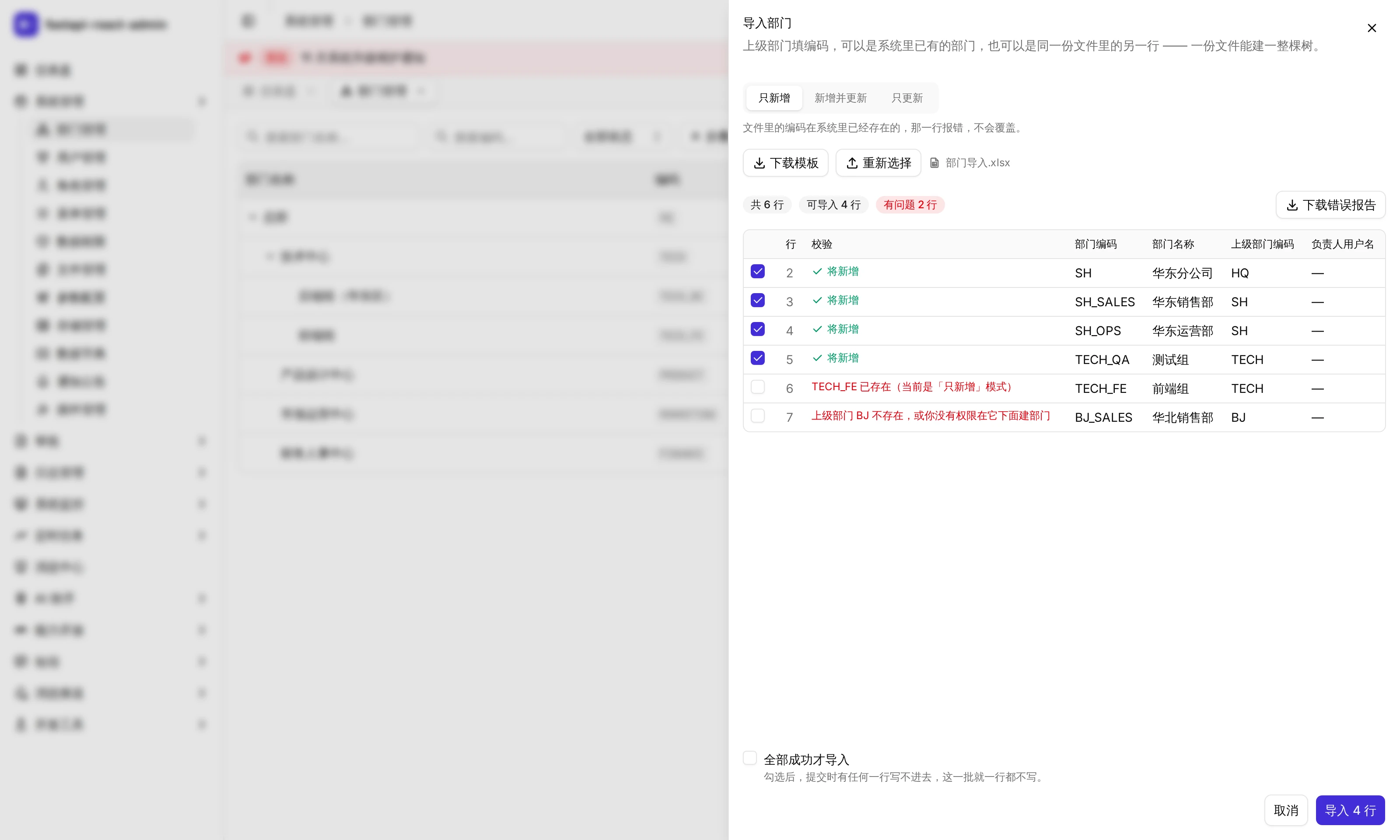
The preview writes nothing and returns the total, the valid rows, how many will be created and updated, and every row’s problems. Enum columns accept either language and common synonyms. Duplicates within the file are flagged as “same as row N”. You can exclude rows in the preview before committing; changing the import mode runs the preview again.
Commit uses a one-time token from the preview: valid for 30 minutes, usable once, bound to the importer and the resource. Every row is validated again at commit, because the database may have changed since the preview.
How do the three import modes differ?
Section titled “How do the three import modes differ?”| Mode | Row already exists | Row does not exist |
|---|---|---|
| Create only | Error | Created |
| Create and update | Updated | Created |
| Update only | Updated | Error |
“Already exists” is decided by department code for departments, dictionary type code + label for dictionary items, and username for users (user import is create-only, and a username, email or phone that clashes with an existing user is an error). When updating, a blank cell keeps the current value; it does not clear the field.
By default the valid rows go in and the bad ones are skipped. With Import only if every row succeeds ticked, a single failure rolls back the whole batch and nothing is written.
When rows fail you can download an error report: the original cells plus “row” and “reason” columns, ready to fix and import again. Only the importer can download it, and it expires with the preview token.
How does one file build a whole department tree?
Section titled “How does one file build a whole department tree?”Each row has its own department code and a parent department code (parent_code). The parent can be an existing department the importer can see, or another row in the same file, in any order: rows are written top-down by depth at commit. Cycles are checked against the tree as it will be after the import, so moving A under B and B out of A in the same file is not mistaken for a cycle, while a real cycle is reported. If a parent row has an error, the rows under it are flagged too.
Which settings are there?
Section titled “Which settings are there?”Import and export are not on the Config page; everything is in .env, and the backend (and the worker) need a restart after a change:
| Key | Default | Notes |
|---|---|---|
EXPORT_SYNC_MAX_ROWS | 5000 | Up to this many rows are built within the request; more go to the background |
EXPORT_MAX_ROWS | 200000 | Cap for one export; above it the export is refused |
EXPORT_MAX_CONCURRENT_PER_USER | 3 | Queued or running exports per person |
EXPORT_FILE_RETENTION_HOURS · EXPORT_RECORD_RETENTION_DAYS | 72 · 90 | Hours to keep the file, days to keep the record |
EXPORT_BATCH_SIZE | 1000 | Rows read per batch in a background export |
TABLE_IMPORT_SIZE_MAX · TABLE_IMPORT_UNCOMPRESSED_MAX | 5 MB · 100 MB | Upload size and uncompressed size (against zip bombs) |
TABLE_IMPORT_MAX_ROWS · TABLE_IMPORT_MAX_ENTRIES | 1000 · 1000 | Data rows, entries inside the archive |
IMPORT_EXPIRE_SECONDS | 1800 | Lifetime of the preview token and the error report |
USER_IMPORT_DEFAULT_PASSWORD | empty | Initial password for imported users. Empty = user import is off; it must pass the password rules, and production refuses weak defaults. Deliberately kept off the Config page |
They are defined in the import and export sections of core/conf.py.
Adding import / export to your own list page
Section titled “Adding import / export to your own list page”Export:
- Call
register_export(ExportSpec(...))inapp/admin/dataio.py(or a plugin’s owndataio.py): resource name, permission code, columns, allowed filters, the query. Reuse the list endpoint’s DAOget_selectfor the query, so data scope and filter semantics match the list and nothing is exportable that the list would hide. - Add a
POST /xxx/exportroute withRequestPermission('xxx:export')that callsexport_service.start(copydept.py). - Put the menu button’s permission code into the seed SQL for all three databases, write a data migration, and update
sql/seed_manifest.json;test_permission_codes.pychecks that these agree. - Add
export.*keys in both languages. - On the page:
<Can perm><ExportButton path filters selectedIds total /></Can>.
The Celery worker loads these definitions through load_dataio_modules(), so resources registered in plugins can export in the background too.
Import: register_import(ImportSpec(...)) declares the columns, the match key (key_of), validation, the write and the supported modes; add the /import/template, /import/preview and /import/commit routes; put an <ImportSheet> on the page. Step-by-step notes and pitfalls are in common/dataio/AGENTS.md.
What it does not do
Section titled “What it does not do”- No
.xlsor csv import; formulas in cells are not accepted. - A blank cell cannot clear a field on import, and import cannot move an existing department to the top level.
- Someone limited by data scope who imports new departments may create departments outside their own scope that they then cannot see.
- Swapping the names of two sibling departments in one file collides.
- User import is create-only and superuser-only, so “export the user table, edit it, import it back” does not work; the round trip is tested for departments only.
- The completion message for background exports needs the notifications plugin (
notification); without it nothing is sent and you check Exports yourself. - The UI cannot choose which columns to export yet.
A few UI texts don’t match the behaviour; noted here so they don’t mislead:
- The department template says a blank
parent_codemeans a top-level department, but in “Create and update” / “Update only” mode a blank keeps the current parent. - The import dialog describes all three modes as matching by “code”; dictionary items actually match by dictionary type code + label (the dictionary page’s own description gets this right).
Where is the code?
Section titled “Where is the code?”- Export:
common/dataio/exporting.py(registry) ·export_service.py·common/dataio/cells.py(formula injection, cell cleaning) ·writers.py· background jobtasks/export/tasks.py - Import:
common/dataio/importing.py·import_service.py· xlsx reading / writingutils/excel_ops.py - Resource definitions:
app/admin/dataio.py(users, departments, logs) ·plugin/dict/dataio.py - Frontend:
pages/_shared/data-io/(export button, import sheet) ·profile/exports-panel.tsx
How is it tested?
Section titled “How is it tested?”Backend tests run against a real database:
test_export.py(24 tests): over the cap is refused, not truncated; formulas stay text in xlsx and get quoted in csv; background exports are visible only to their owner; the worker re-checks permissions before running; an expired file is refused, then purged.test_import.py(29 tests): a tree in one file is created parents first; reorganising within one file is not a false cycle; the modes decide what an existing code means; an exported file imports back unchanged; what happens when a write fails after other rows were written; create-or-update follows the database at commit time.test_user_import.py(19 tests): non-superusers are refused by all three endpoints; import is off with no default password; one token cannot be committed twice.tests/test_excel_ops.py(37 tests): only the first sheet is read; a formula becomes an error instead of an empty value; a zip bomb is rejected before openpyxl opens it; long option lists move to a hidden sheet.
In the browser (Playwright): data-io.spec.ts (the exported CSV is exactly the filtered set; the export can be downloaded again from Exports; one file builds a department tree, children before parents included) and user-import.spec.ts (the preview points out three kinds of problems and commit creates only the clean rows; one token cannot be committed twice; a non-xlsx file is rejected with a reason).
Try it on the demo
Section titled “Try it on the demo”On the live demo (admin / 123456), open System → Departments, click Import, download the template, fill in two or three rows with one row’s parent being another row in the same file, upload it and see how the preview marks new rows and problems. For export, try Logs → Sign-in log and export a csv by filter. The demo is shared, so other people see the departments you import; please delete them afterwards.