
Users, roles, departments and menus
Permissions rest on four tables and four screens: departments form a tree, a user belongs to one department and can have several roles, a role grants menus and buttons, and the menu table decides both what the sidebar shows and which permission code each button needs. This page covers how to operate those screens and their limits; how permission codes and data scopes are evaluated on the server is in Data permissions.
Where is it in the UI?
Section titled “Where is it in the UI?”| Screen | Path | Needed to open the page | Other permission codes |
|---|---|---|---|
| System → Users | /system/user | sys:user:del | View sys:user:list · export sys:user:export. Create, edit, change permissions, reset password, reset two-factor and import are superuser only |
| System → Roles | /system/role | sys:role:add | View sys:role:list · edit and add / remove members sys:role:edit · change permissions sys:role:menu:edit · change data scopes sys:role:scope:edit · delete sys:role:del |
| System → Departments | /system/dept | sys:dept:add | View sys:dept:list · edit edit · delete del · import sys:dept:import · export sys:dept:export |
| System → Menus | /system/menu | sys:menu:add | View sys:menu:list · edit edit · delete del |
⚠️ The “needed to open the page” column is what the frontend route guards check today: all four check a create or delete code, not the view code. A role with only the view code is redirected to 403. The seed MANAGER role has the Users and Departments menus and both view codes, but neither sys:user:del nor sys:dept:add. The E2E suite ran into this (e2e/AGENTS.md: a test role without the Departments buttons lands on /403 when opening the department page). Superusers are not subject to route guards.
What is the difference between “Superuser” and “Admin sign-in”?
Section titled “What is the difference between “Superuser” and “Admin sign-in”?”A user has two switches, changed under Permissions & security in the user list (superusers only, and not on yourself):
| Switch | What it does |
|---|---|
Superuser (is_superuser) | Skips every permission-code and data-scope check; the sidebar shows every menu |
Admin sign-in (is_staff) | Without it the account can sign in and read, but every write (any request other than GET) is refused with “This account is not allowed to perform admin operations” |
Superuser-only endpoints require both.
⚠️ Users created by hand or by import start with Admin sign-in off, so after their first sign-in they cannot save anything until a superuser turns it on. The switch’s description in the UI says “With this off the account still exists but cannot get in”; in fact the account can still sign in and read, it just cannot change anything.
What can be done with users?
Section titled “What can be done with users?”- Create: a department is required, the password must pass the password rules, and the form requires at least one role. A user belongs to exactly one department and can have several roles; saving replaces the whole set of roles.
- Disable / enable: a user is either normal or disabled. Disabling ends all of their sessions at once, and their open pages go back to the sign-in screen.
- Locked is not a status: 5 wrong passwords in a row lock the account for 5 minutes (changeable in Config); it unlocks on its own, and there is no manual unlock in the UI.
- Reset password: superusers only, no old password needed; the new password still cannot repeat recent ones; all of the user’s sessions end.
- Delete: several can be selected and deleted together, one by one, with failures reported. Superuser rows cannot be selected. Deletion is logical (the row stays in the database), but there is no restore in the UI.
- Phone numbers are unique; when an admin changes someone’s number, its “verified” flag is cleared and the owner has to verify it again in Profile before SMS sign-in works.
- Bulk import is covered in Import and export: superuser only, create only, with the initial password from
USER_IMPORT_DEFAULT_PASSWORD.
The department filter on the user list matches that department only, not its children.
How does the role permission matrix work?
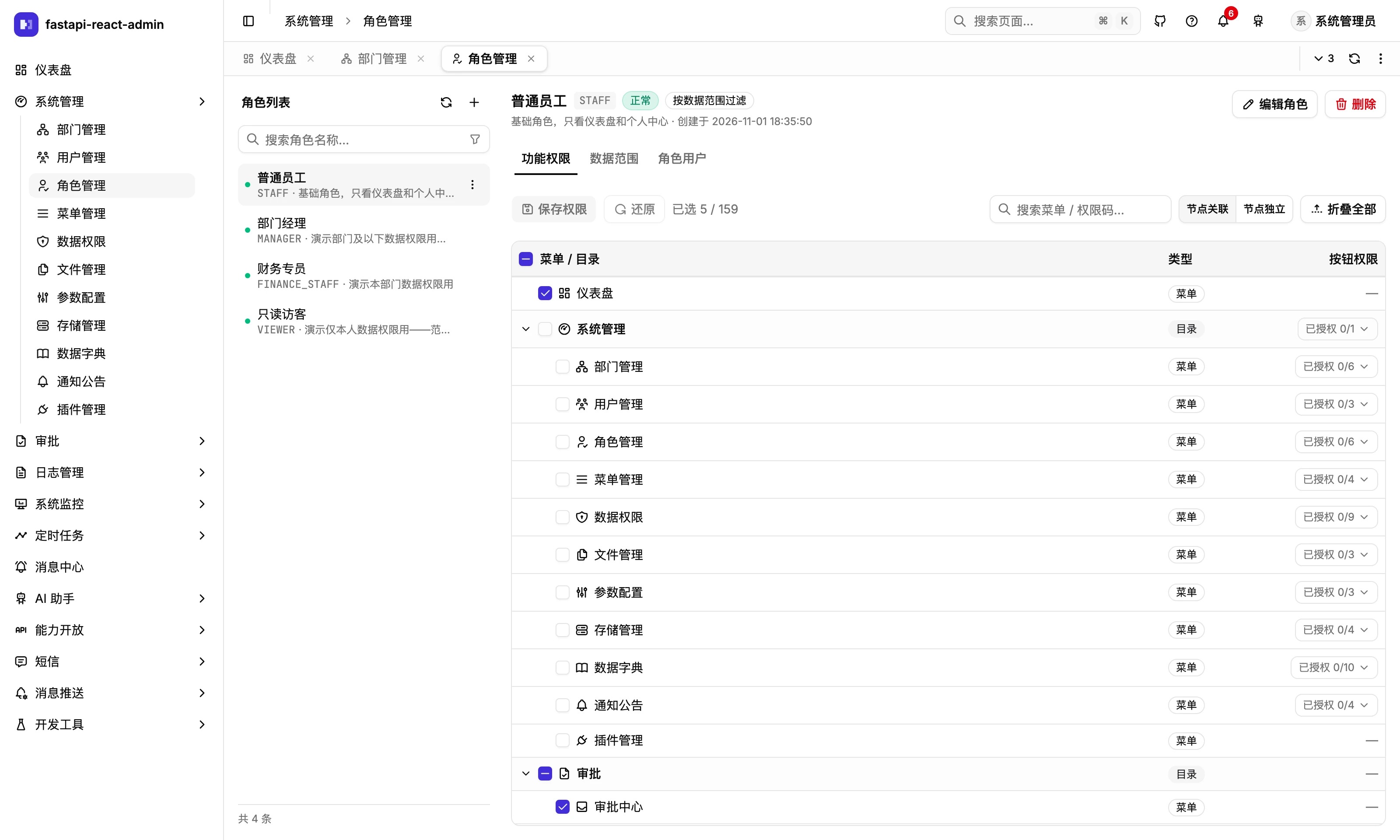
Section titled “How does the role permission matrix work?”The role page has the role list on the left and three tabs on the right: Permissions, Data scope and Members.
- Role code: starts with an upper-case letter, then upper-case letters, digits and underscores, 2–32 characters, and cannot be changed after creation (code refers to roles by code). Code and name must both be unique.
- Permissions is a menu tree; buttons sit at the right of their menu’s row with an “n/m granted” chip. Two ways of ticking:
- Cascade nodes: ticking a node also ticks all its children and all its ancestors.
- Independent nodes: ticks only that node. If a child is ticked while its parent is not, a warning appears with a one-click fix that adds the parents.
- The search box matches menu names and permission codes. Changes are a draft until Save; Revert discards unsaved changes. Editing needs
sys:role:menu:edit.
- Data scope binds data scopes to the role. The role form also has an Enable data-scope filtering switch; off means the role sees all data. Writing rules is covered in Data permissions.
- Members only adds or removes “this user has this role”; it does not touch the user. Removing someone’s last role shows a warning.
Deleting a role is logical; once deleted it no longer grants anything to anyone.
Does the other person have to sign in again after a permission change?
Section titled “Does the other person have to sign in again after a permission change?”No. When a role’s permissions, data scopes or members change, the affected users’ permission cache is cleared after the transaction commits, and from their next request the backend uses the new permissions. The permission codes and sidebar cached in their browser are not refreshed automatically (there is no push), so they need to reload the page to see new menus and buttons. The E2E suite checks this: after a data scope is unbound, the target account sees the change on reload without signing in again. See also Data permissions.
What are the department rules?
Section titled “What are the department rules?”- Department codes are unique and cannot change after creation; names only need to be unique among siblings.
- The leader must be an enabled user (checked only when the leader changes).
- A department cannot be moved under itself or one of its descendants.
- A department that still has users or child departments cannot be deleted; with children, the delete button is disabled.
- After a department is disabled, requests from users who belong directly to it are refused (“The department of this account is disabled”); their sessions are not ended.
- The department tree is limited by data scope: people see only the departments in their scope.
- One xlsx can build a whole department tree; see Import and export.
What menu types are there?
Section titled “What menu types are there?”| Type | In the sidebar | Required |
|---|---|---|
| Directory | An expandable group; becomes a plain link when it has no visible children, and is hidden if its path is also invalid | Path |
| Menu | A page; the path must be a real frontend route, otherwise it is not shown (with a console warning) | Path |
| Button | Not shown; carries permission codes, several per row separated by commas | Permission code |
| Embedded page | Opens an external address in an iframe inside a tab (route /embedded/<name>); only http / https are loaded, and the page also shows the address and an “open in new tab” button | Address |
| External link | Opens in a new browser tab | Address |
In the web app, embedded URLs accept complete HTTP(S) URLs and same-origin root-relative paths such as /help. The desktop client requires a complete HTTP(S) URL; opening a relative menu displays instructions to update the URL or use the web app. External links always require complete HTTP(S) URLs.
When upgrading, check existing embedded URLs: relative values without a leading /, such as help, ./x, and docs/a, no longer load and are rejected on save. Confirm the intended destination before changing them to root-relative paths such as /help, /x, and /docs/a, or to complete HTTP(S) URLs.
- The menu form’s path can only be picked from existing frontend routes; the name must be English letters and digits, starting with a letter.
- A hidden menu (not shown in the sidebar) still opens by URL; Profile is one.
- Disabling a directory disables its whole branch: it disappears from the sidebar and its permission codes stop counting; re-enabling brings it back. Superusers only lose the sidebar entry; pages without a permission guard still open by URL.
- The menu page flags dead links (an “N dead links” badge, with a filter for them): menus whose path has no frontend route. Buttons, external links and embedded pages never count; a directory with at least one visible child does not count.
- Menu titles: the Chinese UI shows the title from the database; other languages look up a built-in translation by path (
menu:<path>), so renaming a menu’s Chinese title does not change the English UI. The form says so. - A menu cannot be moved under its own descendant, and cannot be deleted while it has children.
Which settings are there?
Section titled “Which settings are there?”Almost everything on these four screens is configured in the UI. Related settings:
| Key | Where | Default | Notes |
|---|---|---|---|
USER_LOCK_THRESHOLD · USER_LOCK_SECONDS | Config → Passwords & lockout | 5 · 300 | Wrong passwords before lockout and for how long; see Security configuration |
USER_IMPORT_DEFAULT_PASSWORD | .env | empty | Initial password for imported users; empty = user import is off |
RBAC_ROLE_MENU_MODE | .env | true | Permission-code mode; false is casbin mode, see Data permissions |
RBAC_ROLE_MENU_EXCLUDE | .env | [] | Permission codes listed here skip the check |
Adding menus and button permission codes for a new page
Section titled “Adding menus and button permission codes for a new page”Step 7 of Adding a business module from scratch describes both ways: for local experiments, create the directory, menu and buttons by hand under Menus; to ship them with the code, add the menu rows to the seed SQL for all three databases (same IDs), write a data migration, run pnpm seed:manifest --write, and test_permission_codes.py checks that the backend guards, the frontend <Can perm> gates and the seed menus agree.
Known issues
Section titled “Known issues”- The four screens’ frontend route guards check create / delete codes rather than the view code; see above.
- Users created by hand or by import start without Admin sign-in and cannot save anything after their first sign-in; the switch’s UI description does not match its behaviour, see above.
- The user delete dialog says it cannot be undone; deletion is actually logical, there is just no restore.
- Data scopes have no “my department and all below” template; see Data permissions.
Where is the code?
Section titled “Where is the code?”- Endpoints:
api/v1/sys/user.py·role.py·dept.py·menu.py - Permission checks:
common/security/rbac.py· permission cache invalidationapp/admin/utils/cache.py - Frontend:
pages/user/·pages/role/(matrix inperm-matrix.tsx/perm-tree.ts) ·pages/dept/·pages/menu/(dead-link rule indead-link.ts, explained inAGENTS.md) · sidebarshell/use-sidebar.ts· route guardsauth/guards.ts
How is it tested?
Section titled “How is it tested?”Backend (apps/api/backend/app/admin/tests/):
security/test_rbac.py(12 tests) andsecurity/test_user_cache_invalidation.py(6 tests): after a role’s menus change, the permission snapshot is already cleared when the response returns; you cannot change your own permissions.api_v1/test_admin_writes.py: an account without Admin sign-in can read but not write.security/test_permission_codes.py: backend guards, frontend<Can perm>gates and seed menus are reconciled three ways.api_v1/test_menu_disable.py: disabling a directory disables its whole subtree.api_v1/test_dept_tree.py: a department cannot move under its own descendant.
In the browser (Playwright): perm-matrix.spec.ts (saving writes only to the role named in the URL; Revert discards unsaved changes; the missing-parent warning and one-click fix in independent mode), dept-crud.spec.ts (duplicate codes, code locked when editing, sibling names unique, departments that cannot be deleted), menu-dead-link.spec.ts, menu-rename-disable.spec.ts (renaming a built-in menu; disabling a directory removes the branch, re-enabling restores it) and data-permission.spec.ts (after a data scope is unbound, the target account sees the change on reload without signing in again).
Try it on the demo
Section titled “Try it on the demo”On the live demo (admin / 123456), open System → Roles, pick a role, switch between Cascade nodes and Independent nodes under Permissions to see the difference, and search for a permission code (such as sys:user:list) to see which row it belongs to. The Menus page shows whether there are dead links right now. The demo is shared, so a permission change affects every demo account with that role; please Revert afterwards.