
Sign-in and security
Use this guide to sign in, protect your account with an authenticator and understand password rules. Two-factor is required when enabled on your account or enforced by an administrator.
For devices, idle timeouts and forced sign-out, see Session management. For setting names and defaults, see Security configuration.
Preview the sign-in page
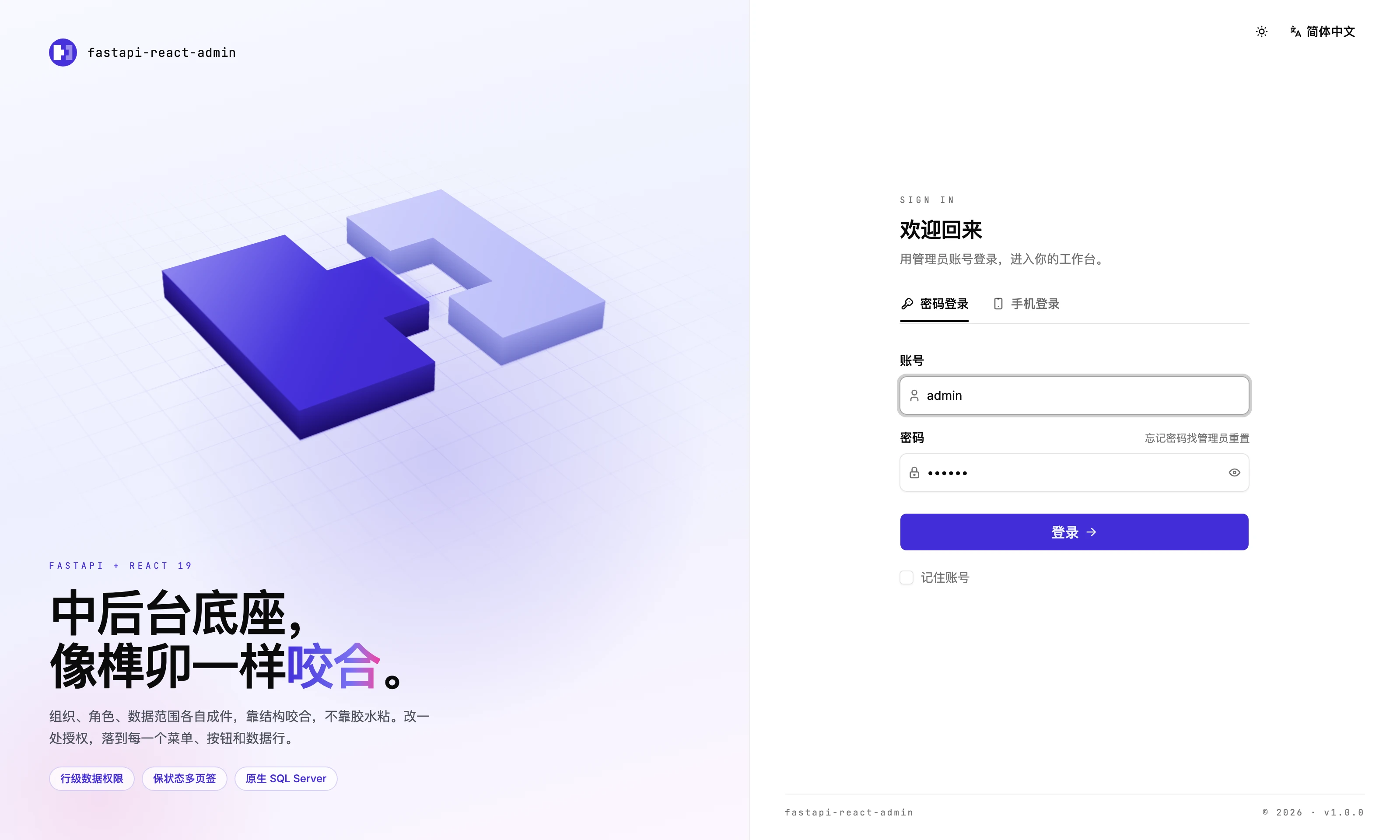
Where is it in the UI?
Section titled “Where is it in the UI?”- Sign-in page (
/sign-in): everyone can open it. - Profile (
/profile): change your password, bind a phone or authenticator, link third-party accounts, and review recent sign-ins. - System → Users (
/system/user): superusers reset passwords and two-factor for others. - System → Config (
/plugins/config): change policies withsys:config:edit. - Logs → Sign-in log (
/log/login): inspect attempts withlog:login:list.
Password and two-factor resets require a superuser, regardless of menu permissions.
Which sign-in methods are there?
Section titled “Which sign-in methods are there?”| Method | Before you sign in |
|---|---|
| Username and password | Enter your account, password and the image captcha enabled by default |
| SMS code | The SMS plugin must be installed; first verify and bind your number in Profile |
| GitHub / Google | The OAuth2 plugin must be configured; sign in with your password first and link your account in Profile |
An admin-entered or imported phone number cannot be used for SMS sign-in until its owner verifies it. Unknown third-party accounts are refused by default; automatic registration settings must be enabled explicitly.
There is no self-service password recovery: the sign-in page says “Ask an admin to reset your password”.
How does two-factor (MFA) work?
Section titled “How does two-factor (MFA) work?”1. Prepare the server key
Section titled “1. Prepare the server key”An administrator first sets MFA_SECRET_KEY in apps/api/backend/.env and restarts the API. It must be 64 hex characters; generate it with:
python -c "import os;print(os.urandom(32).hex())"An empty key prevents enabling or requiring two-factor. This is a server secret; keep it out of shared documentation and screenshots.
2. Bind an authenticator
Section titled “2. Bind an authenticator”- Open Profile → Two-factor authentication and start setup.
- Scan the QR code with an authenticator such as Google Authenticator, Microsoft Authenticator or 1Password.
- Enter a current code to confirm and save the 10 recovery codes shown next.
With a current code, you can also turn two-factor off or regenerate recovery codes in Profile, unless policy requires it.
Expected result: after signing out and back in, you are asked for a code at the second step. SMS and third-party sign-in use this step too when two-factor applies.
3. Require it for your team, if needed
Section titled “3. Require it for your team, if needed”Under System → Config → Sign-in policy, set Require two-factor:
| Value | Result |
|---|---|
off | Each user chooses whether to enable it |
superuser | Required for superusers |
all | Required for everyone |
An unenrolled user must bind an authenticator during the next web sign-in before entering the system. Required users cannot turn it off. The mobile app accepts codes, but initial enrollment must be completed on the web.
What are the password rules?
Section titled “What are the password rules?”| Rule | Default | Allowed range |
|---|---|---|
| Length | 6–32 characters | 1–128 |
| Must contain a special character | No | — |
| Cannot repeat one of the last N passwords | 3 | 0–24 |
| Valid for | 365 days (0 = never expires) | 0–3650 |
| Reminder lead time | 7 days (0 = no reminder) | 0–365 |
Change your password under Profile. Administrators adjust these rules under System → Config → Passwords & lockout; the backend enforces the same ranges.
Changing your own password, or having it reset by an admin, ends every session of that account (reason: password changed), including the current one.
How many wrong passwords before a lockout?
Section titled “How many wrong passwords before a lockout?”By default, 5 consecutive failures lock an account for 5 minutes. Across accounts, 30 failures from one IP lock it for 15 minutes. Messages do not reveal whether an account exists or is locked.
Account thresholds are under System → Config → Passwords & lockout; per-IP limits are configured in .env. Behind a reverse proxy, set TRUSTED_PROXIES so IP-based protection uses the correct address. See Security configuration for keys and rate limits.
Manage signed-in devices
Section titled “Manage signed-in devices”Superusers view and revoke sessions under Monitoring → Active sessions. The Session management guide covers device limits, idle timeouts and each sign-out message.
What it does not do
Section titled “What it does not do”- The only second factors are TOTP and recovery codes: no passkeys (WebAuthn), no hardware keys, and SMS is not offered as a second factor.
- No self-service password recovery or self-registration (except third-party sign-in with auto-registration explicitly turned on).
- The password expiry reminder is not shown in the web client yet, and an expired password cannot be changed by its owner; see above.
- Session operations use single-instance Redis Lua scripts; Redis Cluster has not been tested. See Session management.
Configuration and development reference
Section titled “Configuration and development reference”- Security configuration: all settings, extension points, source links and existing test coverage.
- Try session management: observe two sessions on the shared demo. Test MFA locally; the demo may not have a key configured.